
When the network goes down, productivity halts. Having a systematic troubleshooting approach can save hours of downtime.
Step 1: The Physical Layer
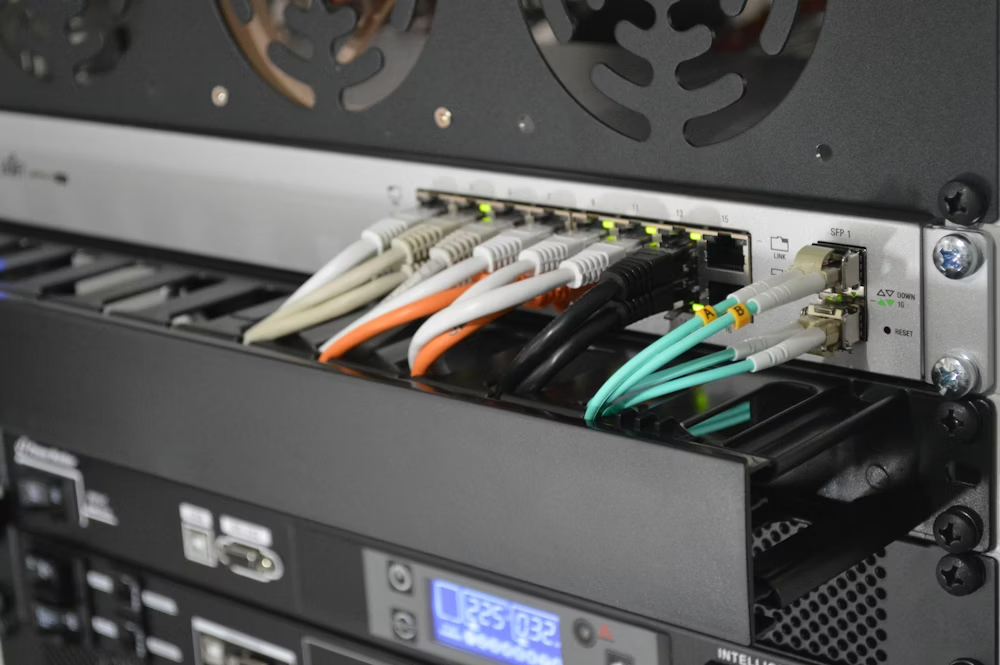
Always start with Layer 1. Is the cable plugged in? Is the link light on the switch port active? Try swapping the patch cable with a known working one. If the cable runs through a wall, use a cable tester to check for continuity breaks or shorts.
Step 2: IP Configuration
If the physical link is good, check the IP configuration. Run `ipconfig` (Windows) or `ifconfig` (Mac/Linux). Does the machine have a valid IP address? If you see a 169.254.x.x address, it means the device cannot reach the DHCP server. Check if the DHCP scope is full or if the server service is running.
Step 3: Connectivity Testing
Use `ping`. First, ping the loopback (127.0.0.1) to test the local NIC. Then ping the default gateway. If you can reach the gateway but not the internet, the issue is likely with the router, firewall, or ISP. If you can ping 8.8.8.8 but not google.com, you have a DNS issue.
Step 4: Isolate the Variable
If only one user is affected, it’s a local endpoint issue. If an entire department is down, check the switch serving that area. If the whole building is slow, look at the edge router or ISP connection bandwidth utilization.
Frequently Asked Questions
What is a “Loopback” Test?
Pinging 127.0.0.1 tells the computer to talk to itself. If this fails, the network card driver or hardware in the computer is corrupted or broken.
Why is WiFi Slow but Wired is Fast?
WiFi is shared bandwidth subject to interference (microwaves, walls). Wired is dedicated. Slow WiFi often means channel congestion or being too far from the Access Point.